Choosing the best USB Document Camera in 2026 is less about chasing the biggest resolution number and more about matching the camera to real work. A teacher may need to show pencil marks on a worksheet from the back of a bright classroom. A trainer may need crisp close-ups of circuit boards. A librarian may simply need pages that stay flat and readable. Different jobs. Different winners.
Market context matters, but it needs careful reading. AVIXA’s 2025 Industry Outlook and Trends Analysis tracks professional audiovisual investment and forecasts industry growth; it offers useful context for classroom and workplace equipment, not a sales ranking of USB document cameras. That distinction matters. For a practical comparison, buyers should check USB connection type, operating-system compatibility, autofocus speed, capture area, lighting, and whether the included software works with their existing video tools. A high-resolution sensor can still disappoint if small text looks soft or the camera struggles under fluorescent lights.
Learning scientist Richard E. Mayer captures why live visuals can help: “People learn better from words and pictures than from words alone.” A document camera makes that principle tangible, putting a marked-up page or tiny object on a shared screen. But hardware cannot guarantee understanding. It can even distract when setup takes longer than the demonstration.
The shortlist ahead weighs image quality against setup time, controls, and value. Expect trade-offs. The best choice is the one that makes details easy to see—and stays dependable after the first week.
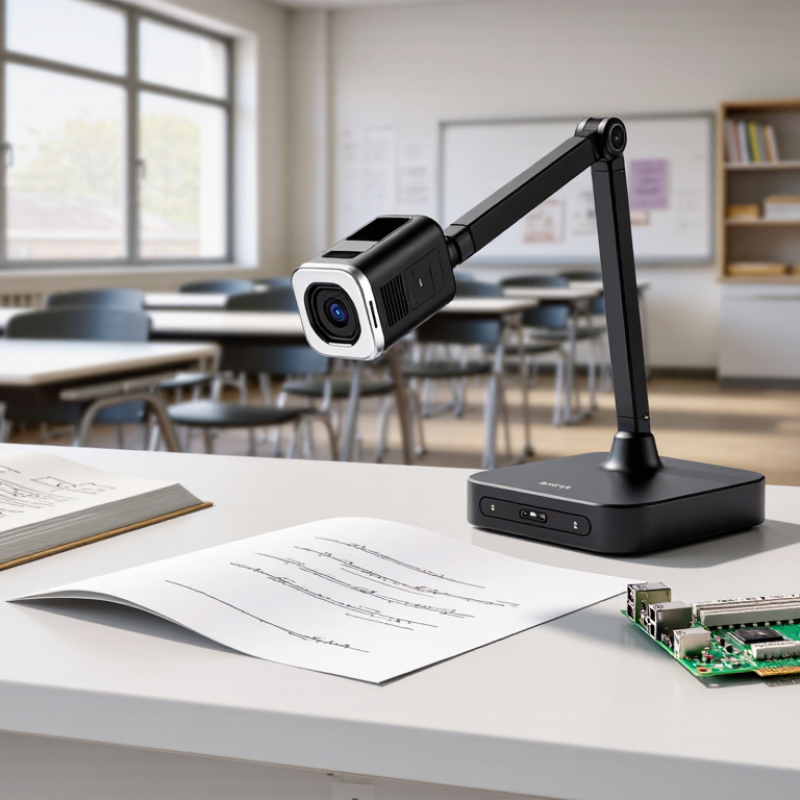
A USB document camera is an overhead camera designed to show pages, worksheets, or small objects on a computer screen. Its raised lens points down toward a flat work area, much like a compact copy stand. Unlike a flatbed scanner, it can display a page live without feeding it through a machine. Simple setup.
To capture a page, place it beneath the lens and connect the camera to a computer with a USB cable. The camera’s image sensor converts reflected light into digital frames, which compatible viewing or meeting software displays. You can usually save a still image or share the live view. A steady arm helps keep text sharp; even a slight wobble can make small print harder to read.
USB may carry both data and power, though power needs vary by model. Image quality depends on the sensor, lens, focus, and lighting—not just the advertised resolution. A desk lamp can reveal glossy glare, while soft light from the side often makes handwriting easier to see. Automatic focus is convenient, but it may hunt when a hand passes over the page. Not magic. Checking focus and exposure before a lesson or scan can prevent avoidable retakes.
Resolution sounds like a simple buying number, but the pixel math gives useful context. A 1920 × 1080 image contains about 2.1 million pixels. That is 1080p. The ITU’s Recommendation BT.2020 defines UHD formats including 3840 × 2160, or about 8.3 million pixels. Four times the pixels. Not four times the usefulness.
For a document camera, 1080p can keep large print and diagrams clear on a classroom display. Try a small-font page, though, and the edges may soften when you zoom in. A 4K camera captures more detail in the same frame, which can help with dense worksheets, circuit boards, or close-up handwriting. But lens quality, focus, lighting, and USB compression still matter. More pixels cannot rescue a blurred image. A practical check: show a page under ordinary room lights, then inspect fine text on the receiving screen. If the connection reduces image quality, the extra resolution may not show. I’d compare real sample footage, not just the specification sheet. That judgment is imperfect; screen size and viewing distance change what people notice.
USB-IF rates USB 2.0 at 480 Mb/s and USB 3.2 Gen 1 at 5 Gb/s. These figures describe maximum signaling rates, not the video data a camera will always deliver. Protocol overhead, computer ports, cable quality, and other connected devices can reduce real-world performance. The number on the box is only part of the story.
For a document camera, the difference matters most when sending high-resolution video at a smooth frame rate. A 5 Gb/s connection offers more bandwidth headroom, especially when the camera sends less-compressed video. USB 2.0 may still work well for lower-resolution images, slower demonstrations, or compressed streams. A typical classroom scene—a page under the lens, a hand moving across the text—can reveal stutter that a still image will not.
Check the whole connection. The camera, cable, and computer port all need to support the faster standard to benefit from USB 3.2 Gen 1. A suitable port alone cannot upgrade a slower cable or camera. Not quite that simple. I would also test the camera in the software used for lessons or meetings, because settings can change resolution and frame rate. Bandwidth ratings help narrow a choice, but they cannot replace a real setup test. One detail is easy to overlook: a USB-C-shaped connector does not, by itself, confirm a particular data rate.
| Comparison Dimension | USB 2.0 Document Camera | USB 3.2 Gen 1 Document Camera | What to Look For |
|---|---|---|---|
| Rated interface speed | Up to 480 Mb/s (60 MB/s) signaling rate | Up to 5 Gb/s (625 MB/s) signaling rate | These are maximum interface rates, not guaranteed video-data speeds; protocol overhead reduces usable throughput. |
| Everyday document capture | Often suitable for standard-definition or compressed 1080p video, depending on the camera and software. | Provides more bandwidth for higher-resolution or less-compressed video streams. | For worksheets, books, and notes, check image clarity, autofocus, and lighting alongside resolution. |
| 4K video | May depend heavily on compression, frame rate, and camera implementation; not a dependable choice for every 4K stream. | Offers greater bandwidth, but support for 4K still depends on the camera’s sensor, encoding, and software. | Confirm the camera’s actual supported resolution and frame rate rather than relying on the USB version alone. |
| Video compression | Compressed formats can help fit video within the available bandwidth. | Can accommodate higher data rates, though a camera may still use compression. | Check which video formats the camera and your capture software support. |
| Frame rate and motion | Performance varies with resolution, compression, and host-system load. | More headroom may help with higher frame rates, subject to camera capabilities. | For live demonstrations, verify the frame rate at the resolution you intend to use. |
| Compatibility | Widely supported by computers with USB 2.0 or newer ports. | Requires a compatible USB 3.x connection to reach Gen 1 speeds; it can generally operate at lower compatible speeds. | Check the computer port, cable, operating system, and any required drivers. |
| Best-fit choice | A practical option for basic document viewing and compressed video when cost or legacy compatibility is the priority. | A stronger general-purpose choice when you want more bandwidth for high-resolution capture or smoother live video. | For most new setups, choose a USB 3.2 Gen 1 model with verified resolution, frame rate, focus, and lighting specifications. |
Note: USB interface speed alone does not determine image quality or make one document camera universally “best.” Actual performance depends on the camera’s sensor, optics, video format, cable, host port, and software.
A strong USB document camera should match the pages you actually scan. For A4 worksheets, a compact camera with a stable overhead arm may be enough. A3 pages need a wider field of view, or you may have to reposition the paper. Check the full-page image at your intended desk height, not just the advertised megapixel count. Fine print, pale pencil marks, and curled corners reveal more than a specification sheet.
Autofocus should settle quickly when you move between a flat page and a raised object. Constant hunting can blur a live lesson or add friction to scanning. Lighting matters, too: adjustable, even illumination helps reduce shadows from your hand and glare on glossy pages. Test it under your room’s actual lights. OCR depends on sharp focus, contrast, and a straight page; it cannot reliably repair poor capture. Try a sample with small text and a table, then check the exported document for missing characters and broken columns. Small flaws count. I would also consider USB stability and software compatibility, though these are easy to overlook during a quick demo. One caveat: advertised capture area may not equal usable, distortion-free area.
Paper dimensions follow ISO 216: A4 is 210 × 297 mm and A3 is 297 × 420 mm. For full-page capture, check that the camera’s usable capture area covers the paper size; autofocus, lighting, and OCR performance should be evaluated separately.
When comparing 2026 USB document cameras, start with the work they must handle. In a classroom, a wide capture area can show an open workbook and a student’s handwritten notes together. For office training, adjustable focus helps keep small diagrams readable. Remote workers may value a compact base and quick setup more than a high maximum resolution. Check how the camera performs under ordinary room lighting, not just ideal conditions. Small details matter. A glossy page can cause glare, while a tall stack of papers may fall outside the camera’s focus range.
Compare image clarity, focus speed, adjustable arm stability, and USB compatibility with your computer and meeting software. A high-resolution specification sounds useful, but it cannot fix poor lighting or awkward positioning. If several people need to view the same page, test whether text remains legible in the actual video call. Listen for fan or handling noise, too. It is easy to overlook. Also consider whether controls are easy to reach while presenting; a camera that needs constant adjustment can interrupt a lesson or meeting.
Tips: Test it live. Place a printed page beneath the lens, move it slowly, and check fine text on another screen. Try your usual lighting and USB port before choosing. A short test may reveal an annoying limitation you would otherwise miss.
It is an overhead camera for showing pages, worksheets, or small objects on a computer screen. Its lens points down at a flat work area. Simple setup.
Place the page beneath the lens and connect the camera to a computer with a USB cable. Its sensor turns reflected light into digital frames. Compatible software can show the live image or save a still picture.
USB may carry both data and power, but power needs vary by model. Check the camera’s requirements before setting it up.
1080p contains about 2.1 million pixels and can show large print and diagrams clearly. Small text may look soft when enlarged. Try a real worksheet on the screen you plan to use.
4K UHD contains about 8.3 million pixels, which can help with dense worksheets or close-up handwriting. It does not guarantee a sharper image. Focus, lens quality, lighting, and USB compression still matter. More pixels are not magic.
Place a full page under the camera at your actual desk height. A3 needs a wider field of view than A4. Check that the page edges remain visible and undistorted.
Autofocus should settle when you switch between a flat page and a raised object. A hand passing over the page can make focus hunt. Soft side lighting may reveal handwriting more clearly, while a desk lamp can cause glare on glossy paper.
Not reliably. OCR works best with sharp focus, strong contrast, and a straight page. Test a small-text sample with a table, then inspect the exported file for missing characters or broken columns. I would not trust one quick demo.
A USB Document Camera captures printed pages, worksheets, books, or objects with a camera sensor and sends a live image to a computer through a USB connection. For clear reading and sharing, resolution matters: 1080p provides about 2.1 megapixels and is often adequate for everyday documents, while 4K UHD offers about 8.3 megapixels for finer details and larger images. Connection speed also affects how smoothly video transfers; USB 2.0 is rated at 480 Mb/s, compared with 5 Gb/s for USB 3.2 Gen 1.
When comparing models in 2026, consider whether the camera can cover A4 or A3 pages, focus quickly and reliably, and provide even lighting that reduces shadows and glare. OCR support can help turn captured text into searchable or editable content. The best choice depends on the setting: classrooms may prioritize easy demonstrations, offices may need legible records, and remote workers may value simple setup and clear live viewing.