Choosing a Portable Document Camera in 2026 is not just a megapixel contest. The right model should make a pencil annotation, a circuit-board pin, and small-print text clear on a classroom display. It should also fold quickly, connect reliably, and survive daily packing. Details matter.
UNESCO’s 2023 Global Education Monitoring Report estimated that only 40% of primary schools worldwide had internet access. That figure is a reminder to check more than image quality: consider USB and wireless options, software needs, and whether the camera works without a cloud account. Bill Gates, a technology-industry leader, once said, “Technology is just a tool. In terms of getting the kids working together and motivating them, the teacher is the most important.” His point applies here: a camera should support teaching, not complicate it.
This guide compares practical features, including resolution, autofocus, lighting, portability, compatibility, and total cost. We’ll also look at details buyers can miss, such as a shaky arm, glare on glossy pages, or slow switching between a book and a live demonstration. Not just megapixels. A specification sheet cannot show how quickly a camera focuses on a moving hand. Test it live, if possible. One caveat: published education-connectivity figures do not measure document-camera performance, and manufacturer claims are not independent tests. Use them as context, then judge each device against your room, workflow, and budget.
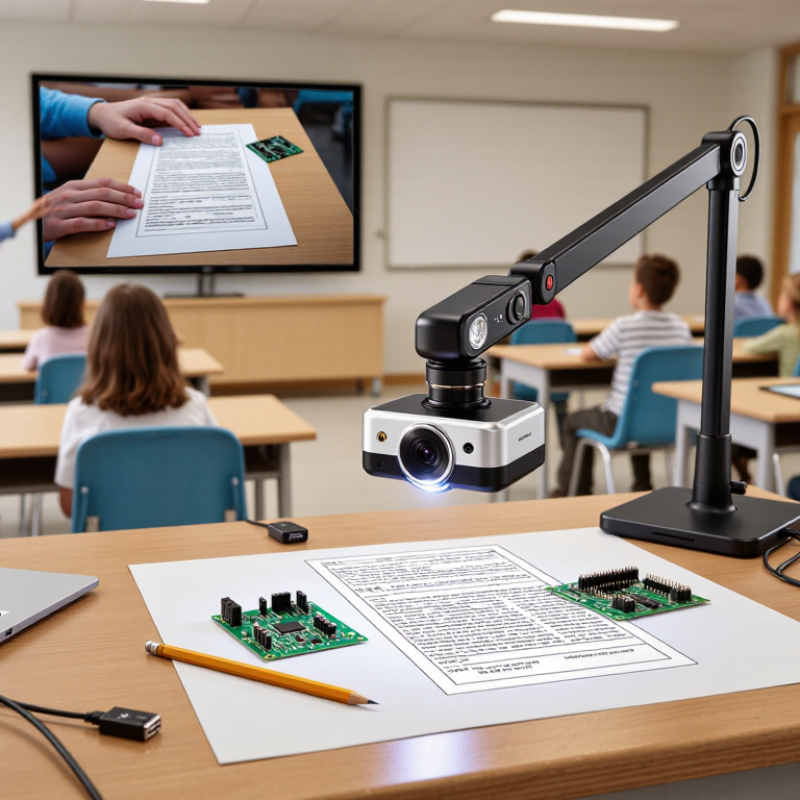
For teaching, presentation, or scanning, choose a portable document camera around the task you repeat most. A teacher demonstrating a folded paper model needs a broad capture area, stable positioning, and responsive autofocus. A presenter showing small parts needs sharp close-ups and lighting that avoids shiny glare. For scanning worksheets or receipts, check image resolution, color accuracy, and whether pages lie flat in the frame. Small details matter.
A useful test: place a page under the camera, move a hand across it, and see how quickly the image settles. OECD’s PISA 2022 Results report found that 30% of students across OECD countries felt distracted by digital devices in most or every mathematics lesson. A camera that displays physical examples clearly may support focused, shared viewing, though it cannot solve every classroom distraction. For repeatable digitization, consult FADGI’s Technical Guidelines for Digitizing Cultural Heritage Materials, which stress consistent image capture and quality targets. Those guidelines serve cultural collections, not every classroom scan, so match them to your actual needs. I would not buy on resolution alone. A compact camera can still be awkward if its stand blocks the page or its controls are fiddly. Test the whole setup on your own desk.
When choosing a portable document camera in 2026, compare real image details, not just headline resolution. A 4K sensor can capture tiny print, but only if the lens focuses evenly across the page. Check sample images for sharp text near the corners, natural colors, and clear pencil marks. In a classroom or small office, a camera that shows a full worksheet without cropping may be more useful than extra pixels. Specifications can be confusing. They do not tell the whole story.
Lighting matters just as much. A glossy page under a strong lamp can develop bright patches that hide words. Look for adjustable brightness and lighting that spreads evenly across the capture area. Test the camera with a matte sheet, a shiny book cover, and fine handwriting. Check whether shadows from your hand make the image difficult to read. A small gap between the camera and desk can also affect focus, so confirm the camera handles your usual setup.
Tips: Compare images at the same screen size and distance. Turn off room lights briefly to spot flicker, then test again in normal conditions. If possible, bring a page with small footnotes. Readability beats impressive numbers. One detail is easy to miss: automatic exposure may brighten a white page while washing out faint pencil. That trade-off is not always obvious until you use the camera.
A portable document camera should fit the way you actually teach or present, not just look small online. Check its folded dimensions and weight, then picture carrying it with a laptop, charger, and papers. A light unit with a stiff arm may be less useful than a slightly heavier model that opens quickly and stays steady. Weight matters. If possible, test the hinge and focus controls before buying; product photos rarely show how much desk space the base needs.
Connectivity affects setup time and image reliability. USB is usually simple for a computer, while HDMI can suit a room display. Wireless options reduce cable clutter but may introduce pairing delays or uneven performance. Cables add up. Check whether power and video use one connection or separate ones, and confirm which adapters are needed. In a classroom or meeting room, a short cable test can reveal more than a feature list.
Device compatibility means more than “works with laptops.” Verify supported operating systems, camera-app access, resolution settings, and whether the camera can be selected in your conferencing or recording software. If you switch between a tablet and computer, check connector types and power needs for both. Test it first. Compatibility notes can be vague, and an older device may behave differently after an update. Leave room for that uncertainty instead of assuming every advertised mode will work smoothly.
| Evaluation Dimension | What to Check | Practical Buying Guidance | Suggested Weight |
|---|---|---|---|
| Portability and Setup | Device weight, folded dimensions, stand design, cable storage, and time needed to set it up. | For frequent travel, compare the complete packed weight, including the stand and cables. A folding or compact design is useful when desk space and storage are limited. | 20% |
| Image Resolution and Detail | Native sensor resolution, captured-image dimensions, focus performance, and clarity at the edges of the viewing area. | Check sample images of small print, diagrams, and handwritten notes. A 4K image is 3840 × 2160 pixels; confirm whether a stated resolution is native capture or software-upscaled output. | 15% |
| Focus and Image Controls | Autofocus or manual focus, exposure control, white balance, and the ability to lock settings. | Autofocus helps when switching between flat pages and raised objects. For demonstrations, verify that focus and exposure remain stable as the subject or lighting changes. | 10% |
| Lighting and Capture Area | Built-in illumination, glare handling, camera-head flexibility, and the largest page or object that fits in view. | Test the camera with glossy pages and the largest materials you expect to show. A movable camera head can make it easier to frame books, worksheets, and three-dimensional objects. | 10% |
| Wired Connectivity | USB connector type, included cable, power requirements, and whether the device can send live video over USB. | Check the computer’s available ports and whether an adapter is required. USB-C describes a connector, not guaranteed video or software compatibility; verify the camera’s supported connection mode. | 15% |
| Wireless Connectivity | Whether wireless operation is supported, its setup method, network requirements, and any noticeable delay in live video. | Wireless capability is not standard on every document camera. Confirm that the camera and receiving device can connect on the networks available at home, school, or work. | 10% |
| Computer and Software Compatibility | Supported operating systems, available camera drivers or apps, and compatibility with the software used for meetings or lessons. | Check the maker’s current compatibility information for the exact operating-system version and application. USB Video Class support can simplify use with compatible systems, but it does not guarantee every feature will work in every app. | 10% |
| Tablet and Mobile Compatibility | Supported phone or tablet models, required adapters, power delivery, and whether a dedicated app is needed. | Do not assume that a USB camera will work with a tablet just because the ports can be connected. Confirm operating-system support, adapter requirements, and whether the tablet can supply enough power. | 5% |
| Capture and Sharing Features | Still-image capture, video recording, annotation, document saving, and available file formats. | Match the features to the workflow: live teaching, scanning pages, recording demonstrations, or sharing annotated material. Check export formats if files must be opened in other software. | 5% |
Scoring tip: Rate each dimension from 1 to 5, then apply the suggested weights. Confirm specifications and compatibility for the exact camera and device combination before purchasing.
How to Choose the Best Portable Document Camera in 2026?
Check Controls, Software, and Accessibility Features
A portable document camera should feel simple to operate during a live lesson or meeting. Test its physical controls before buying. Can you adjust focus, brightness, and image rotation without searching through menus? Buttons should be easy to identify by touch, especially when the camera sits beside a laptop. Small details matter.
Check the software with the documents you actually use. Try a printed worksheet, a page with fine text, and a handwritten note. Look for responsive zoom, clear annotation tools, and reliable image capture. Confirm that the software works with your computer and supports useful export formats. A quick test can reveal lag or confusing controls. It may not catch everything.
Accessibility deserves the same attention as image quality. Look for keyboard navigation, readable interface text, screen-reader labels, and adjustable magnification. If you present to a group, check whether the software supports captions or other accessible sharing options. Ask a colleague to try the setup, too; unfamiliar hands often expose awkward steps. I would not assume a feature works just because it appears in a menu. Test it in the room where you plan to use the camera. The lighting may change. So can your patience.
For a portable document camera, compare the full cost over three to five years, not just the checkout price. Include the stand, carrying case, cables, software fees, replacement parts, and staff time spent setting it up. A low-cost model can become expensive if its hinge loosens or its image needs constant adjustment. Check the warranty length, repair process, and availability of replacement cables. Ask for a live demonstration: place a small-print page under the lens, move the camera, and check whether focus and lighting remain steady. Small details matter.
Reliability has a cost beyond the device itself. Uptime Institute’s 2024 Annual Outage Analysis found that 55% of respondents reporting an outage said their most recent incident cost at least $100,000. That figure concerns organizational outages, not document cameras, but it illustrates why interruption costs belong in equipment planning. For a school or mobile trainer, a failed camera can mean a delayed lesson and extra staff work. I still find it easy to overlook setup time. Compare two or three models using the same test materials, then record image clarity, connection stability, and setup time. Choose the option whose support and durability fit your budget, even if the upfront price is higher. A spreadsheet helps, but real-world testing can still surprise you.
Resolution does not guarantee sharp text across the page. Check sample images for clear corners, natural colors, and visible pencil marks.
Try a matte sheet, a glossy cover, and fine handwriting. Look for glare, uneven brightness, and hand shadows. Faint pencil may disappear.
Compare its folded size and weight with your laptop and papers. Test whether the arm opens quickly and stays steady on your desk.
USB often suits computers, while HDMI can connect to room displays. Wireless options reduce cables but may add pairing delays. Test your setup.
Check operating system support, connector types, power needs, and access through your camera or meeting software. Try each device you plan to use.
Try focus, brightness, and image rotation. Controls should be easy to find by touch, without digging through menus.
Test zoom, annotation, image capture, and export formats with a worksheet and handwritten note. Some lag may only appear during use.
Look for keyboard navigation, readable text, screen-reader labels, and adjustable magnification. Ask someone unfamiliar with the setup to try it. Small awkward steps can remain.
Choosing the best Portable Document Camera in 2026 starts with understanding how you plan to use it. Teaching live lessons, presenting physical materials, and scanning documents can each call for different features. Consider the size and type of items you will capture, how often you will move the camera, and whether you need to share images with other devices.
Compare image resolution, focus, and lighting to make sure text and fine details remain clear in different settings. Check portability, connection options, and compatibility with your computer or display, along with the ease of using its controls and software. Accessibility features may also make presentations more comfortable for a wider audience. Finally, weigh expected reliability and ongoing costs against your budget so you can choose a camera that suits your needs without paying for features you are unlikely to use.